WooCommerce PluginDownload free version
Abandoned Cart Recovery for WooCommerce
No reviews yet
from$69.00/yr
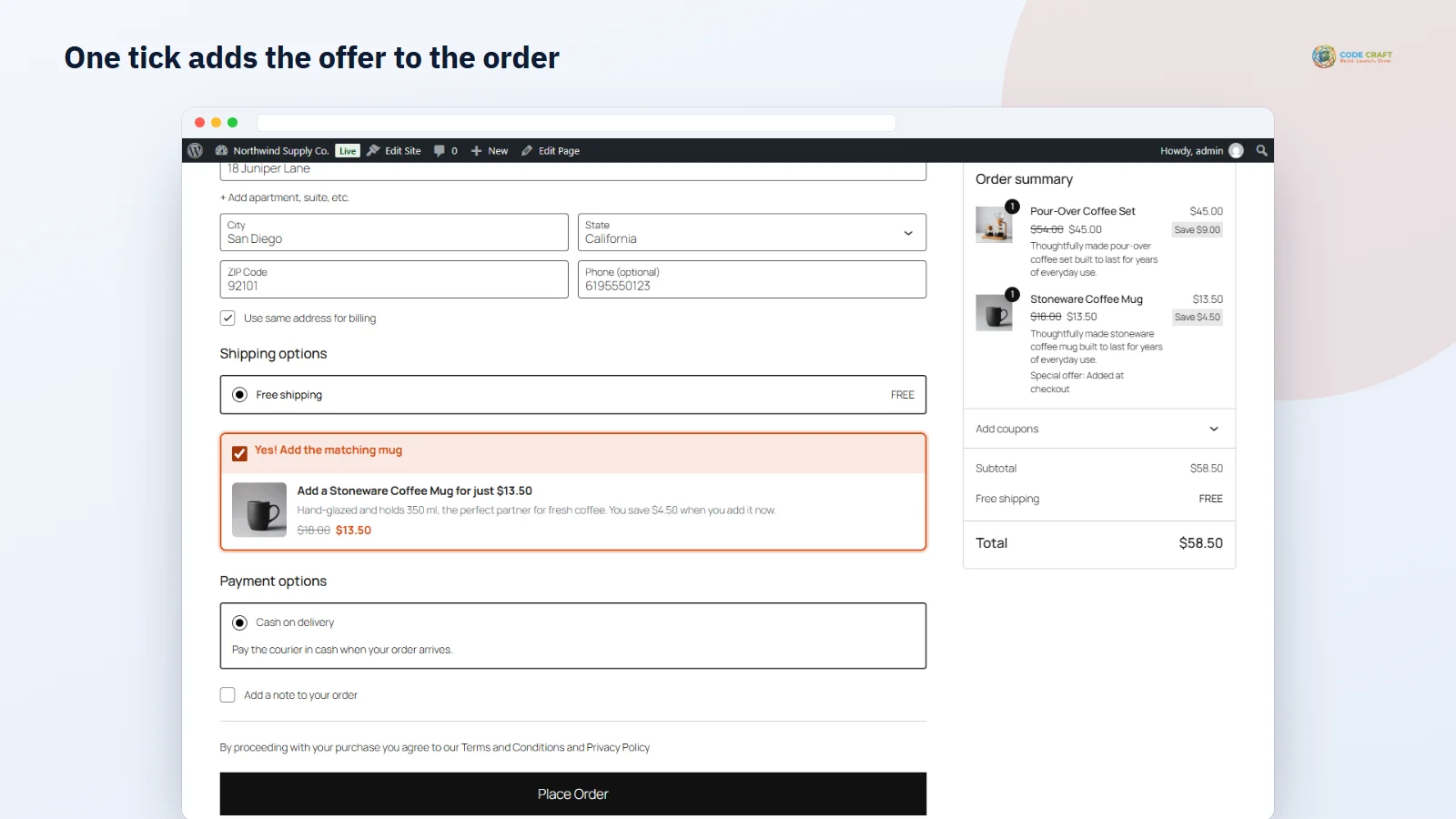
WooCommerce order bump: a one-tick discounted add-on right on the checkout
Get a BumpBox Pro key by email and use every Pro feature for 7 days on one site. No card needed, nothing renews automatically — when the trial ends, Pro switches off unless you choose a plan. One trial per email.
Choose monthly, 1 year or lifetime — your key and download link are emailed instantly.
Upload the zip in wp-admin. The free core works right away.
Paste it in the plugin's License tab to activate.
Pro features, updates and priority support switch on.
Create a 25% off mug offer, tick it on the block checkout, add a Pro T-shirt offer with a size picker and category rule, use the classic checkout and read the stats.
Download the PDF user guideThe free core is a real, working plugin — not a trial that expires. Pro unlocks the advanced modules with a licence key, and nothing you build on free is lost when you upgrade.
Everything most sites need. No account, no email required — download and install.
.zip · v1.0.0 · 2 downloads
Same plugin, every module unlocked by your licence key — plus updates and priority support.
Already bought it? Enter your key:
Or sign in — every licence you own shows up there.
| Feature | Free | Pro |
|---|---|---|
| Order bump checkbox offer on the checkout | Included | Included |
| Block checkout and classic shortcode checkout | Included | Included |
| Percentage, amount-off or fixed offer price | Included | Included |
| Three positions on the checkout | Included | Included |
| Minimum cart amount; hidden when already in the cart | Included | Included |
| Own checkbox text, headline, description, photo and colour | Included | Included |
| Simple products or one exact variation | Included | Included |
| Number of active offers | 1 | Up to 5 per checkout |
| Rules: cart products, categories, cart total range | Not included | Included |
| A/B test of the bump copy | Not included | Included |
| Minimal, Highlight banner and Product card templates | Not included | Included |
| Variation picker inside the bump | Not included | Included |
| Views, adds, orders, conversion and revenue stats | Not included | Included |
Upgrading is just entering a key — same plugin, same settings, nothing to reinstall or migrate.
An order bump is the small boxed offer next to the payment methods that says "Yes, add this for $13.50". The shopper has already decided to buy, the offer is cheap next to the cart and it takes one tick, so a good share of shoppers say yes. BumpBox is built for direct-to-consumer brands and shops with natural add-ons: a mug with a coffee set, a case with headphones, a care kit with shoes, a refill with a starter pack. You choose one product, a discount and a place on the checkout; BumpBox shows it as a dashed box with a checkbox, the product photo, a headline, a short description and the old and new price.
On the block checkout (the default checkout page in new WooCommerce stores) the offers travel with WooCommerce's own Store API cart data. Ticking the box sends a cart update through WooCommerce's extension API, so the order summary, the item list and the total refresh straight away without a page reload, and the Place order button waits for the update to finish. On the classic [woocommerce_checkout] shortcode checkout the offer is printed by WooCommerce's checkout hooks and refreshed with the normal update_checkout cycle. In both cases the browser only says which offer was ticked: the price is recalculated on the server from your saved offer every time the cart is calculated.
BumpBox → Add offer has everything on one screen. Search for the product to offer: a simple product or one exact variation such as a T-shirt in Navy, size M. Set the offer price as a percentage off, an amount off, a fixed offer price or the normal price; it is worked out from the product's current price, including its sale price. Pick the position — above the payment methods, just above the Place order button, or with the order summary — and an optional minimum cart amount. Then write the checkbox text, the headline and the description. The placeholders {product}, {price}, {regular_price} and {saving} fill in the product name, the offer price, the normal price and the difference. Turn the product photo on or off and choose an accent colour. A live preview next to the form shows the box as shoppers will see it.
The offer only appears when it makes sense. It needs at least one normal product in the cart, it can wait until the cart reaches a minimum amount, and it hides itself when the shopper already has that product in the cart. If the cart changes after the box was ticked — the shopper removes items and drops below your minimum, or adds the same product from the shop — the bump item is taken out of the cart, so the discount is never given to a cart it was not meant for. Bump items are labelled "Special offer: Added at checkout" in the cart, order and emails, and the admin order screen names the offer that sold each line.
Pro runs up to five offers per checkout (you choose how many show at once) in the priority order you set. Each offer can be targeted to carts that contain certain products or variations, carts with a product from certain categories (child categories included), and a cart total range with a minimum and a maximum. A store selling coffee gear can offer a mug to coffee-set buyers and a cleaning brush to grinder buyers on the same checkout. Three extra designs sit next to the Classic dashed box: Minimal (a thin border with an accent bar), Highlight banner (a solid accent header with white text) and Product card (a large photo with the tick row underneath).
Offer a variable product and Pro adds a "Choose an option" list inside the bump showing each in-stock variation with its offer price, so shoppers pick their colour or size before ticking; changing the option after ticking swaps the item in the cart. The A/B test shows a second checkbox text, headline and description to half of your shoppers; each shopper keeps the same copy. The Stats screen lists, per offer and per copy, how many shoppers saw the offer, how many ticked it, how many orders included it, the add and order rates and the revenue the bump lines brought in, before tax.
BumpBox needs WordPress 6.4 or newer, PHP 7.4 or newer and WooCommerce 8.0 or newer, and was tested with WordPress 7.1 and WooCommerce 11.2 on PHP 8.3 with WP_DEBUG on. It declares High-Performance Order Storage and cart/checkout block compatibility and stores its order data as order item meta. Offers live in one option and the counters in another, so there are no extra database tables. The free plugin makes no outside connections; Pro contacts coodecraft.com only to activate and check the licence.
Most stores running BumpBox pair it with these. Every plugin below shares the same licence system, coding standards and support team.
Also popular with our customers: Bundlewright. Browse every woocommerce plugins or see our best-selling plugins. Need this built into a custom project? Our WordPress development team can help.