WooCommerce PluginDownload free version
Abandoned Cart Recovery for WooCommerce
No reviews yet
from$69.00/yr
A WordPress image optimizer that compresses, resizes and converts to WebP on your own server — no cloud, no credits
Get a Pixelkiln Pro key by email and use every Pro feature for 7 days on one site. No card needed, nothing renews automatically — when the trial ends, Pro switches off unless you choose a plan. One trial per email.
Choose monthly, 1 year or lifetime — your key and download link are emailed instantly.
Upload the zip in wp-admin. The free core works right away.
Paste it in the plugin's License tab to activate.
Pro features, updates and priority support switch on.
Set the quality and resize limit, upload a 12-megapixel photo and watch it get resized, compressed, backed up and copied to WebP, check the Media Library column, bulk-optimise the existing library in background batches, serve WebP with picture tags, optimise a wp-content folder, read the savings report and restore an original byte-for-byte.
Download the PDF user guideThe free core is a real, working plugin — not a trial that expires. Pro unlocks the advanced modules with a licence key, and nothing you build on free is lost when you upgrade.
Everything most sites need. No account, no email required — download and install.
.zip · v1.0.0 · 2 downloads
Same plugin, every module unlocked by your licence key — plus updates and priority support.
Already bought it? Enter your key:
Or sign in — every licence you own shows up there.
| Feature | Free | Pro |
|---|---|---|
| Compress JPEG and PNG on upload (GD or Imagick) | Included | Included |
| Resize huge uploads, EXIF rotation applied | Included | Included |
| Never replaced by a larger file; undecodable files skipped | Included | Included |
| WebP copy of the main image and every size | Included | Included |
| Serve WebP by URL swap (with Vary: Accept) | Included | Included |
| Backups + restore one image byte-for-byte | Included | Included |
| Media Library column: bytes before/after, optimise one image | Included | Included |
| AVIF copies (where the server can encode AVIF; large images not yet tested) | Not included | Included |
| <picture> tags or .htaccess serving (Apache/LiteSpeed) | Not included | Included |
| Bulk optimise the library in WP-Cron batches | Not included | Included |
| Restore all originals in the background | Not included | Included |
| Optimise theme and other wp-content folders | Not included | Included |
| Lossless EXIF/GPS stripping and JPEG quality per size | Not included | Included |
| Savings report measured from the files on disk | Not included | Included |
Upgrading is just entering a key — same plugin, same settings, nothing to reinstall or migrate.
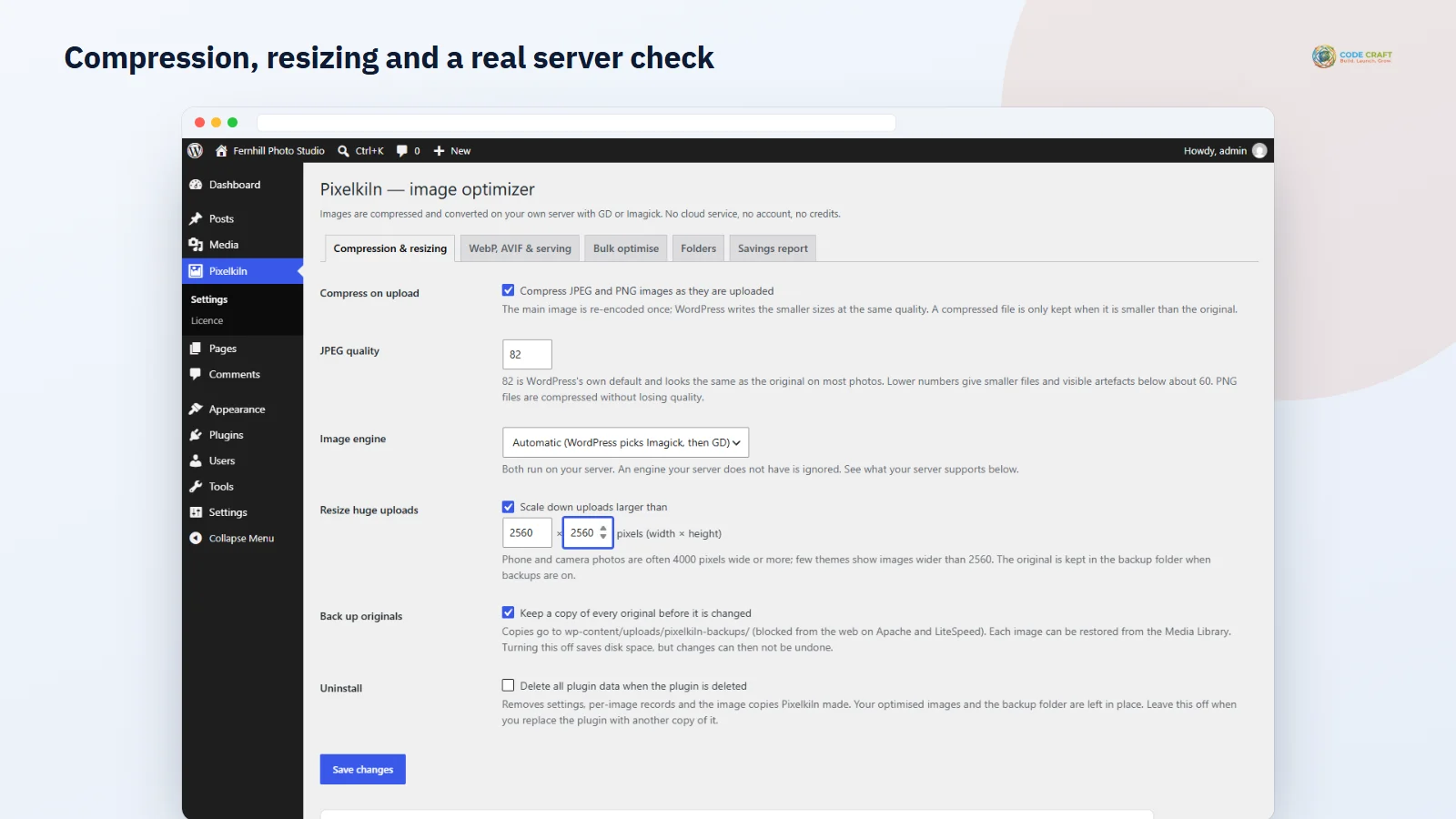
Most image optimizer plugins send your images to a cloud service and sell you credits to get them back. Pixelkiln does the work with the image library your PHP already has — GD or Imagick, whichever your server offers, or the one you choose in the settings — so there is no account, no quota and no image ever leaves your site. The settings screen shows which libraries your server has, their versions, and whether each can write WebP and AVIF. It does not trust what the library claims: it writes a real 1024 × 768 test image in each format and reports the result. On our test server GD claimed AVIF support but failed to encode images of that size, so Pixelkiln reported AVIF as unavailable there and made WebP copies only, without filling the error log.
As the file lands, Pixelkiln copies it to wp-content/uploads/pixelkiln-backups/. If it is wider or taller than your limit it is scaled down; the EXIF rotation of phone photos is applied first, so a portrait stored sideways comes out upright (tested with a 1600 × 1200 photo marked to rotate, which became 1200 × 1600). The main file is re-encoded once at your JPEG quality — 82 by default, WordPress's own setting — and the result only replaces the original when it is a valid image and smaller. WordPress then makes its sizes from that file at the same quality, and because the upload is already within your limit WordPress does not add its own "-scaled" copy. Finally a .webp copy is written next to the main image and every size. In testing, a 4032 × 3024 camera JPEG of 6,376,077 bytes became 2560 × 1920 and 728,859 bytes; a 3000 × 2000 PNG of 2,542,628 bytes became 2560 × 1707 and 2,256,690 bytes, with a WebP copy of 197,036 bytes.
Pixelkiln follows the same rules on every path — uploads, single images, bulk jobs and folders. A file that does not decode is skipped and left untouched: in testing a corrupt JPEG was marked "Skipped" in the Media Library and its bytes were identical afterwards. A re-encoded file that is not smaller is thrown away: a web-ready 12,309-byte JPEG was kept instead of being replaced by a larger re-encode (with Pro's EXIF stripping on, only its metadata was removed: 12,291 bytes). A WebP or AVIF copy that is not smaller than its source is not kept, and a copy whose bytes are not a valid image of that format is deleted. An image Pixelkiln already optimised is never compressed again, even if you click Optimise on it — the file's hash was unchanged in testing. Every original is backed up first while backups are on, and restoring copies it back byte-for-byte.
The Free edition serves WebP by swapping image addresses: when the browser says in its page request that it accepts WebP, the src and srcset of your images point to the .webp copies, and Pixelkiln sends Vary: Accept so caches keep one copy per browser type. Chrome, Edge and other Chromium browsers announce WebP; Firefox and Safari do not announce it in page requests, so in this mode they get the original. Pro adds <picture> tags with AVIF and WebP sources and the original as fallback, so every modern browser picks the best format itself and the HTML is the same for every visitor — safe with any page cache. Each source lists only the sizes that have a copy in that format, so a browser never asks for a missing file. Pro can instead write rewrite rules to wp-content/uploads/.htaccess for Apache and LiteSpeed, which serve the copy at the original address without changing the HTML; the screen shows the exact rules and an Nginx example to add by hand.
Bulk optimise handles the images already in your Media Library in small batches through WP-Cron. The job's state is saved after every batch, so it survives page reloads and closed tabs; Pause, Resume and Stop are on the screen and a five-minute watchdog restarts a job whose next run went missing. Each image gets the upload treatment: backup, resize if huge, compression kept only when smaller, metadata stripping and WebP/AVIF copies. In testing, 8 product photos already in the library (800 px, saved at JPEG quality 95) went from 1,438,894 to 959,554 bytes across all their sizes (33.3% smaller) in 3 WP-Cron batches of up to 3 images, and each was processed exactly once. Restore all puts every backup back in the same way and lets WordPress rebuild the sizes. Folders optimises the JPEG and PNG files in your theme or any folder inside wp-content that is not part of the Media Library: files are compressed in place, never resized, each one backed up first. In testing three files in the chosen folder went from 89,228 to 41,919, 174,541 to 75,430 and 788,300 to 278,871 bytes, while the files in a neighbouring folder kept identical checksums.
Photos carry camera details and often the GPS position where they were taken. With Strip EXIF on, Pixelkiln removes EXIF, XMP and IPTC segments from JPEG files and text chunks from PNG files without re-encoding them, keeping the colour profile; in testing the camera name and GPS block were gone from every size of the uploaded photo. A file whose EXIF rotation is not normal is left alone so it never displays sideways. Quality per size lets you set a JPEG quality for the main image and each registered size; in testing the medium size was written at quality 40 while the others stayed at 82, read back from the JPEG quantisation tables. The savings report is measured from the files on disk when you open it: bytes before Pixelkiln changed each file, bytes now, and what the WebP and AVIF copies save — in testing its totals matched the bytes we downloaded from the site.
Pixelkiln needs WordPress 6.4 or newer, PHP 7.4 or newer, GD or Imagick, and direct write access to the uploads folder (if your host asks WordPress for FTP details, Pixelkiln changes nothing and says why). WebP needs a GD or Imagick build with WebP; AVIF needs PHP 8.1+ GD built with AVIF or an Imagick build with AVIF, plus WordPress 6.5 or newer; AVIF output has so far only been verified on small images (150 px and 300 px), not on full-size photos. How much you save depends on your images: large camera photos shrink a lot, mostly from the resize; images already exported for the web may not shrink at all. When the plugin is deleted with "Delete all plugin data" ticked, its settings, records and WebP/AVIF copies are removed, while the optimised images and the backup folder stay.
Most stores running Pixelkiln pair it with these. Every plugin below shares the same licence system, coding standards and support team.