PayPal Payments — Node.js Store Add-on
Let customers pay with PayPal in your Node.js store, captured and checked on the server
Everything included
- PayPal Orders v2: create, approve, capture
- Sandbox and live environments
- Captured amount and currency checked
- Webhook verified with PayPal's API
- Charges in the customer's currency
- Settings in the store's Add-ons screen
From order to a live website
- 1
Buy the add-on
One-time price; the licence key and download link arrive by email and in My Account.
- 2
Copy into addons/
Drop the folder into your store's addons/ folder and restart the app.
- 3
Enable and configure
Admin → Add-ons: enable it, paste the licence key and fill in its settings.
Who it is for
This add-on is for Northfield stores that sell across borders and want to offer PayPal, the account many international buyers already have. It adds a PayPal method next to the store's built-in cash on delivery, bank transfer, UPI and pickup options. Buyers can pay from their PayPal balance or with a card through PayPal. You need a PayPal business account and an app created on developer.paypal.com; sandbox credentials let you try everything before you go live.
- For shops with international buyers
- PayPal balance or card through PayPal
- Sandbox first, then live
A familiar checkout for international buyers
When the customer chooses PayPal, the store gets an access token from PayPal with your client id and secret and creates a PayPal order with intent CAPTURE for the order total in the order's currency. The order carries your store name as the brand name, the store order number as its reference and a short description such as "Your Store order #1042". PayPal's page is set to Pay Now and does not ask for a shipping address, because the customer already gave one in your checkout. After approving, the buyer comes straight back to your store, which captures the payment at once. If they cancel on PayPal they return to their order page.
- PayPal hosted approval page
- Your store name shown on PayPal
- Immediate capture on return
- Cancel returns to the order page
Checked before it counts
On return, the PayPal order id in the link must match the one the store saved for that order, otherwise nothing is captured. The store marks the order paid only when the capture status is COMPLETED and the captured amount and currency equal the order total. A capture that fails or does not complete is written to the order's timeline so you can see why. If you add a webhook for PAYMENT.CAPTURE.COMPLETED and paste its webhook id, each event is first sent back to PayPal's verify-webhook-signature API; only a SUCCESS answer is used, and the amount is checked again. Every PayPal request carries a unique PayPal-Request-Id.
- Token must match the store's PayPal order
- Amount check on capture and webhook
- Webhooks verified by PayPal
- Failed captures noted on the order
What you see in the admin
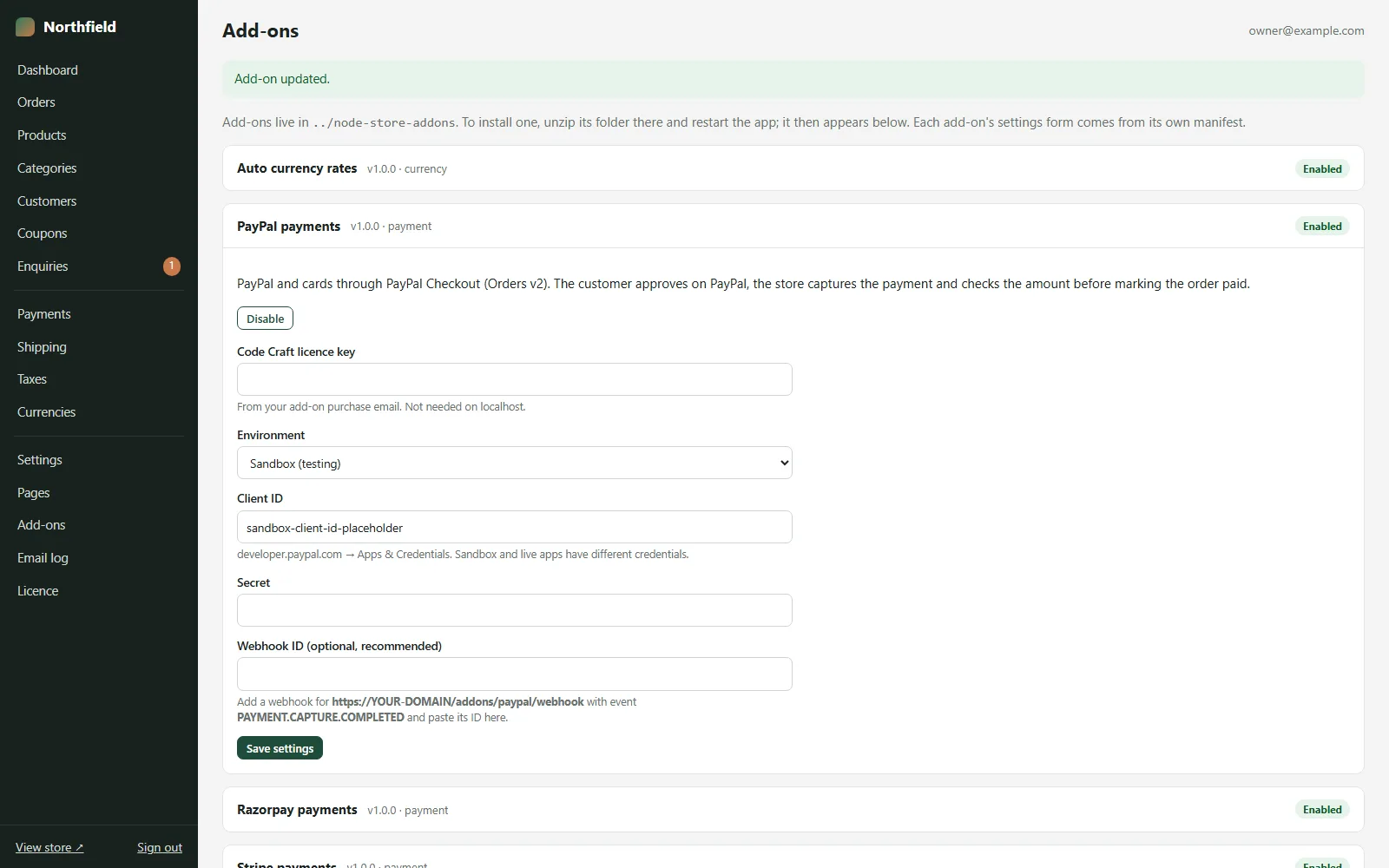
PayPal payments appears in Admin → Add-ons with an Environment choice (Sandbox or Live), the client id, the secret, an optional webhook id and your add-on licence key. Once enabled, the PayPal method appears in Admin → Payments, where you can rename it and set its order. The order timeline shows when the PayPal order was created and for how much, and the PayPal capture id becomes the order's payment reference.
- Sandbox and Live switch
- Rename and reorder in Admin → Payments
- Capture id saved on the order
Installing and going live
The zip holds one folder, paypal, with its index.js and a README. Copy it into your store's addons/ folder, restart the app (Restart app on Hostinger or cPanel, pm2 restart store on a VPS) and open Admin → Add-ons. Press Enable, choose Sandbox, paste your sandbox client id and secret and your add-on licence key, and save. If you want the webhook, add it to your PayPal app and paste its webhook id. Pay for a test order with a sandbox buyer account and check that it turns Paid with a PayPal capture id. Then switch the Environment to Live and paste the live app's credentials. Until the add-on licence is active on your live domain, the store will not start a PayPal payment there and notes this on the order.
- Copy, restart, enable
- Sandbox buyer account for testing
- Licence checked on your live domain
Limits to know
Refunds are made in your PayPal account, not from the store; then set the order to Refunded in the store admin. PayPal accepts a fixed list of currencies, so only enable store currencies that your PayPal account can receive. Subscriptions, PayPal Pay Later messaging and card fields on your own page are not part of this add-on. It was tested only against mocked PayPal responses, never with a real PayPal account or real money.
- Refunds made in PayPal
- Currency must be one PayPal supports
- Tested against mocks, not real payments
More ready-made websites
Built by the same team, with the same setup service and support.
Browse every ready-made website, or compare our custom website packages if you need a site designed from scratch. Want more guests to find you on Google Maps? See our local SEO service, or talk to our web design team.