
Verdant — Organic Grocery OpenCart Theme
OpenCart grocery theme for organic food, farm shops and natural beauty stores — OpenCart 4, three palettes, no core edits
Everything included
- OpenCart 4 extension: no core file edits
- 3 colour palettes: Sage, Clay and Berry
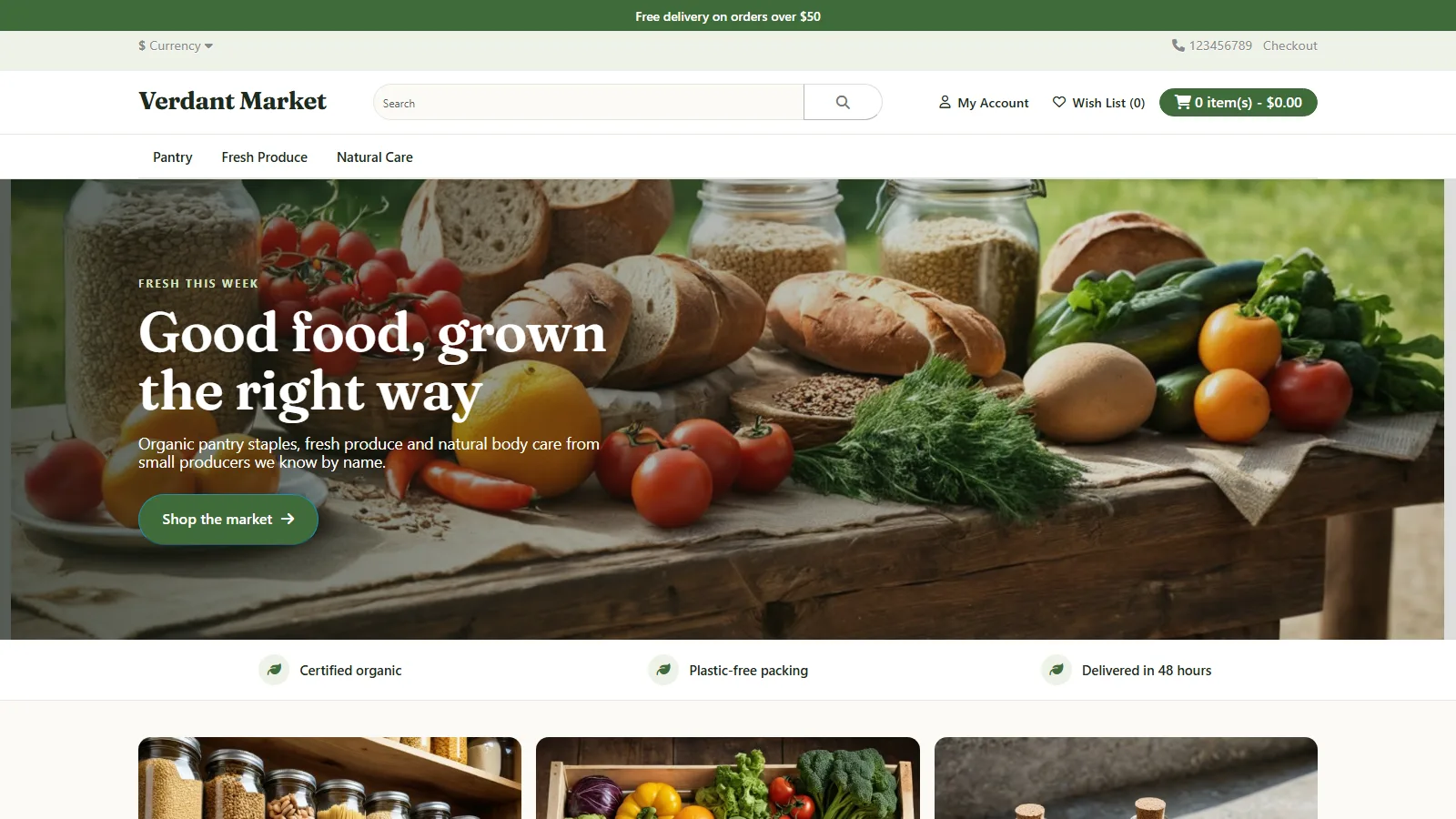
- Hero, announcement bar, trust bar, category tiles
- Product cards with Sale badge and quick buttons
- One settings page, saved per store
- Tested via Extensions → Installer on 4.0.2.3
From order to a live website
- 1
Try the demo
Browse the Verdant demo store: home, categories, products and search.
- 2
Buy a licence
Choose 1 year or Lifetime; the download link arrives instantly.
- 3
Upload to OpenCart
Extensions → Installer → upload verdant.ocmod.zip, then install the theme.
- 4
Set it up
Pick a palette, write your hero and trust texts, and select Verdant as your theme.
Verdant OpenCart theme demo
A tour of the Verdant demo store: the home page with hero, trust bar, category tiles and featured products, then a product page, two category pages and search.
Download the PDF user guideAn OpenCart grocery theme that stays out of OpenCart's way
Many OpenCart themes ship as modified copies of core files or as long OCMOD patches, which break when you update OpenCart. Verdant takes the route OpenCart 4 was designed for. It is a theme extension in its own folder, extension/verdant, and it registers one event that runs before a storefront template is drawn. When Verdant is your store theme and its status is on, that event swaps in Verdant's own header, footer, home page and product card templates and leaves every other page on OpenCart's standard markup, restyled by Verdant's stylesheet. Switch your store back to the default theme, or turn Verdant's status off, and your store looks exactly as it did before.
- Installs from verdant.ocmod.zip in Extensions → Installer
- One catalog event, removed again when you uninstall
- Four templates replaced, everything else restyled
- No changes to OpenCart's own files or database tables
Home page, header and footer
The header has an optional announcement bar in your accent colour, a slim top bar with currency, language, phone and checkout links, then your logo (or your store name in the Fraunces serif font when you have no logo), a rounded search field, account and wishlist links and the cart button. It sticks to the top of the page and gains a soft shadow once the shopper scrolls. Your categories sit in a clean menu bar below. On the home page Verdant adds a hero with a small title, a large headline, a line of text and a button; give it a photo and it gets a dark gradient so white text stays readable, or leave the image out for a soft tinted panel. A trust bar shows three short promises, and category tiles show your first four top-level categories with their category images and names. Under these come whatever modules you place on the Home layout, such as Featured or Specials. The footer repeats your store name, an about text and the three trust items, with OpenCart's information, customer service, extras and account links in four columns.
- Announcement bar, hidden when left empty
- Hero with image overlay or tinted panel, hidden without a heading
- Trust bar with three items, also listed in the footer
- Category tiles from your top-level categories
Product cards, category, product and checkout pages
Verdant's product card is used wherever OpenCart lists products: home modules, categories, search, specials, brands and related products. Each card has a square photo that zooms gently on hover, a Sale badge whenever the product has a special price, the name, a two-line description, the price with the old price struck through, the tax line, and Add to Cart, wishlist and compare buttons. Star ratings only appear once a product has real reviews. Category pages get a tidy toolbar for compare, grid or list view, sort order and items per page, and the category list in the side column highlights where the shopper is. Product, cart, checkout, account, contact and information pages keep OpenCart's own templates, so every extension that adds to them keeps working, while Verdant restyles their buttons, form fields, tabs, tables, breadcrumbs and pagination to match.
- Card zoom on hover, Sale badge from special prices
- Ratings shown only when reviews exist
- Restyled toolbar, side column and pagination
- Checkout and account pages keep OpenCart's markup
Settings and colour palettes
Everything is set on one page in Extensions → Extensions → Themes → Verdant. There are fourteen settings: status, colour palette, announcement text, the hero's small title, heading, text, button text, button link and image, whether to show category tiles, the three trust items and the footer about text. Sage is a soft green for organic and farm food, Clay a warm terracotta for bakeries, delis and coffee, and Berry a plum shade for natural beauty and wellness. The palette sets the accent, buttons, links, background tints and the announcement bar together. Settings are saved per store, so a multi-store OpenCart can show different text on each store; we tested on a single-store install. A preview image appears when you choose Verdant under System → Settings → Option → Theme.
- 14 settings on one admin page
- Sage, Clay and Berry palettes
- Hero image from OpenCart's image manager
- Per-store settings and an admin preview image
Performance and accessibility
Verdant adds one stylesheet of about 20 KB and a few lines of script for the sticky header shadow, on top of what OpenCart already loads. Headlines use the Fraunces variable font, bundled in the theme and served from your own store, and body text uses each device's system font, so no font requests go to Google. Product images are lazy loaded. A skip link lets keyboard users jump past the header, focus outlines are visible on links, buttons and fields, icon-only buttons such as wishlist and compare have text labels for screen readers, and hover animations are switched off for visitors who ask for reduced motion. On phones the header becomes two rows, products show two to a row and the hero text sits on a darker overlay.
Install and requirements
Verdant needs OpenCart 4.0.2.x; it was built and tested on OpenCart 4.0.2.3. The download contains verdant.ocmod.zip (the extension), an illustrated installation guide as a PDF, a README and the licence. In OpenCart admin go to Extensions → Installer, upload verdant.ocmod.zip and click Install. Then go to Extensions → Extensions, choose Themes, install Verdant, open its settings, tick Status, pick a palette and save. Finally choose Verdant Theme under System → Settings → your store → Option → Theme. We ran exactly these steps in an automated browser test against a fresh OpenCart 4.0.2.3 store, with no errors in the browser console.
Honest limits
Verdant is for OpenCart 4.0.2.x only; it does not work on OpenCart 3.x or 2.x, and we have not tested it on OpenCart 4.1. It is a styling theme, not a page builder: there is no drag-and-drop layout editor, mega menu, quick view, AJAX filter, product slider or blog design of its own, and home page product rows come from OpenCart's standard modules. The product page, cart and checkout keep OpenCart's own layout with Verdant's styling. Language files are included in English only; for another language copy the en-gb language folders inside extension/verdant and translate them, and type your hero and trust text in the language of your store. Updating means copying the new files over the old ones, or uninstalling and reinstalling, which clears Verdant's settings because OpenCart deletes a theme's settings on uninstall. The demo products and photos are samples and are not part of the download. Verdant 1.0.0 is a new release without a track record on many live stores.
Works well with Verdant
Most stores running Verdant pair it with these. Every plugin below shares the same licence system, coding standards and support team.
Also popular with our customers: Voltra. Browse every opencart themes or see our best-selling plugins. Need this built into a custom project? Our WordPress development team can help.