
Voltra — PrestaShop Electronics Theme
PrestaShop electronics theme for computer, audio and gadget stores — PrestaShop 8 child theme of Classic with Add to cart on every card
Everything included
- PrestaShop 8 child theme of Classic
- Add to cart button on product cards
- Dark sticky header with rounded search
- Restyled filters, product, cart and checkout
- Colours in 14 CSS variables
- Tested via Theme & Logo import on 8.2.0
From order to a live website
- 1
Try the demo
Browse the Voltra demo store: home, categories with filters, products and sale pages.
- 2
Buy a licence
Choose 1 year or Lifetime; the download link arrives instantly.
- 3
Import the theme
Design → Theme & Logo → Add new theme → import voltra.zip, then Use this theme.
- 4
Make it yours
Regenerate thumbnails, upload a light logo and set up your slider and menu.
Voltra PrestaShop theme demo
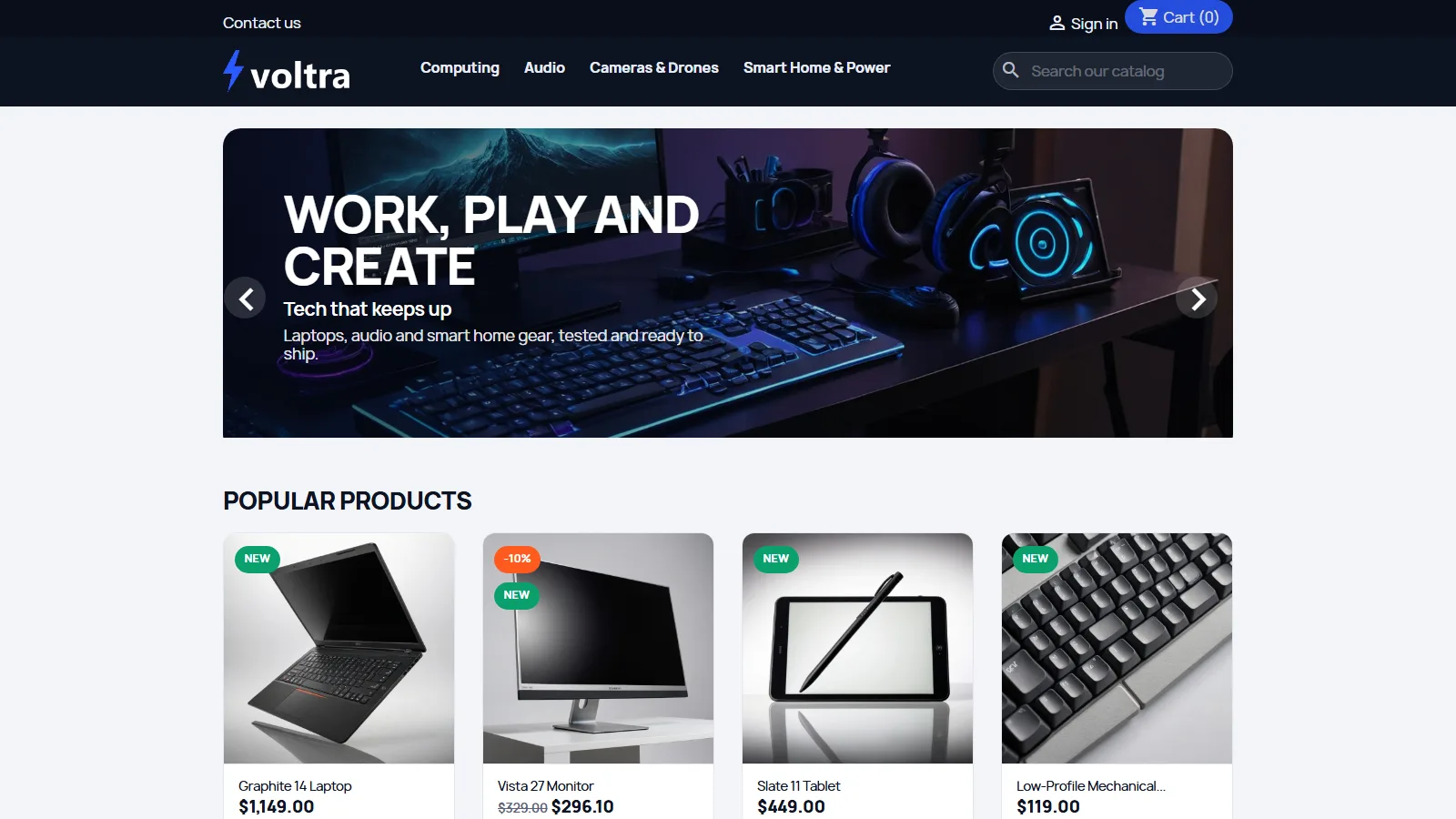
A tour of the Voltra demo store: the home page slider and product rows, a laptop product page, the Computing category with filters, headphones and the prices drop page.
Download the PDF user guideA PrestaShop electronics theme built on Classic
Classic is the theme PrestaShop maintains and ships with every PrestaShop 8 store, and almost every PrestaShop module is tested against it. Voltra is a child theme of Classic: its theme.yml names Classic as the parent and loads Classic's stylesheet and scripts, then adds its own stylesheet, a short script and one template override. Every page you do not see changed, from the checkout to the address forms, still uses Classic's markup, so payment, shipping and marketing modules that work with Classic keep working. When PrestaShop improves Classic, Voltra inherits those improvements. When you switch to Voltra, it hooks the same modules to the same positions as Classic, so your existing slider, featured products, newsletter and footer links carry over.
- Parent theme: Classic, which ships with PrestaShop
- Same module positions and page layouts as Classic
- One template override, one stylesheet, one small script
- Checkout and account pages stay on Classic's markup
Header, home page and product cards
The header is dark navy with a slim top bar for contact, sign-in and the cart, your logo, the category menu and a rounded search field that turns white when focused. It stays at the top of the page and gains a soft shadow once the shopper scrolls. On the home page, Image slider slides get a dark gradient so headlines stay readable, the Banner and Custom text modules become rounded blocks, and product rows from Featured products, Products on sale, New products and Best sellers use Voltra's cards. Each card has a white photo area that zooms slightly on hover, pill-shaped badges (green for New, orange for discounts), the name, the price with the old price struck through and a discount label, and an Add to cart button. The button appears only when PrestaShop says the product can be added directly; products with combinations or customisation show a View options button that opens the product page instead.
- Sticky dark header with rounded search
- Slider captions on a gradient, banner and text blocks rounded
- New and discount badges as coloured pills
- Add to cart on cards, View options for products with choices
Category, product, cart and checkout pages
Category pages put the category tree and the Faceted search filters in white rounded panels on the left, with checkboxes, a price slider and your own features such as Warranty or Connection as filters. The sort bar and the category header become cards above the product grid. Product pages show the photo in a rounded frame with thumbnails, a large bold price, a discount pill, the quantity selector and Add to cart, the reassurance block with icons, and Description and Product Details tabs where your features appear as a striped data sheet. The cart, checkout steps, customer account links, the add-to-cart confirmation and quick view are restyled with the same colours and corners, while their behaviour stays exactly as Classic's.
- Filters and category tree in rounded side panels
- Product page price, tabs and striped data sheet
- Checkout steps and account pages restyled
- Add-to-cart confirmation and quick view to match
Colours, images and settings
PrestaShop themes do not have a settings page of their own, so Voltra keeps its design in 14 CSS variables at the top of themes/voltra/assets/css/custom.css: page background, surface, text, muted text, lines, soft tint, accent, accent hover, text on accent, header background, header text, sale colour, New colour and corner radius. Change a hex value and save to re-brand the whole store. When you switch to Voltra it sets JPEG image quality, which keeps product photos much smaller than Classic's PNG setting, and a 400 × 400 pixel listing thumbnail instead of Classic's 250 × 250. Everything else, such as which modules appear on the home page, which categories appear in the menu and what the slider says, is set in the modules' own settings in the PrestaShop admin.
- 14 CSS variables for colours and corners
- JPEG product images and 400 × 400 listing thumbnails
- Home page content from PrestaShop's own modules
- Menu, slider and banner set in their modules
Performance and accessibility
Voltra adds one stylesheet of about 19 KB and a script of under 1 KB on top of Classic's own files, and it uses Classic's Manrope font, which is served from your store rather than from Google. Product images keep Classic's lazy loading. Links, buttons and form fields get a visible focus outline, the header shadow and card hover effects are switched off for visitors who prefer reduced motion, and text colours were chosen for strong contrast on both the dark header and the light page. On phones the header shows the menu button, logo, account and cart above the search field, slider text moves below the photo, and product grids show two products per row.
Install and requirements
Voltra needs PrestaShop 8.1 or newer and the Classic theme, which ships with PrestaShop, in your themes folder. It was built and tested on PrestaShop 8.2.0. The download contains voltra.zip (the theme), an illustrated installation guide as a PDF, a README and the licence. In PrestaShop admin go to Design → Theme & Logo, click Add new theme, choose voltra.zip under Import from your computer and save. Then point at the Voltra card, click Use this theme and confirm. Finally open Design → Image Settings and regenerate thumbnails so existing product photos are resized for Voltra. We ran these steps in an automated browser test against a fresh PrestaShop 8.2.0 store with no errors in the browser console, and added a product to the cart from a home page card.
Honest limits
Voltra is for PrestaShop 8.1 and newer 8.x versions; it does not support PrestaShop 1.7 and has not been tested on PrestaShop 9. It depends on the Classic theme, so do not delete Classic, and future Classic updates from PrestaShop can change details of how Voltra looks. There is no theme settings page: colours are changed in the CSS file, and there is no colour picker in the admin. Voltra does not add a mega menu, product compare, quick-add for products with combinations, a blog or a page builder; it styles what Classic and PrestaShop's standard modules provide. The new View options label is in English and can be translated in International → Translations. After switching themes you must regenerate thumbnails once. The demo store's products, photos, logo and texts are samples and are not part of the download. Voltra 1.0.0 is a new release without a track record on many live stores.
Works well with Voltra
Most stores running Voltra pair it with these. Every plugin below shares the same licence system, coding standards and support team.